🚑 Copias de apoio
No contexto da auto-hospedaxe, as copias de apoio son fundamentais para mitigar o efecto de eventos imprevistos—como incendios, bases de datos estragadas, problemas de acceso ao servidor, fallos de seguridade. A estratexia de copias que implementes debe axeitarse á importancia dos servizos e datos que xestiones. Por exemplo, facer copia dun servidor de proba ten pouco interese, pero xestionar datos críticos dunha ONG ou empresa ten importancia capital. Nestes casos é imprescindible facer copia de apoio, preferiblemente en varias localizacións.
Copia manual
YunoHost comes with a backup system that allows you to back up (and restore) system configurations and data (e.g. emails) and apps, if they support it.
Podes xestionar as copias ben desde a liña de ordes (yunohost backup --help) ou ben desde a web de administración (na sección Copias de apoio), aínda que algunhas ferramentas aínda non están dispoñibles na web.
The current default method consists of creating a .tar archive containing all relevant files.
Creando copias de apoio
- desde a interface web
- desde a liña de ordes
You can easily create backup archives from the webadmin by going to Backups > Local storage and clicking on New backup. You will then be asked to select which configuration, data and apps you want to back up.
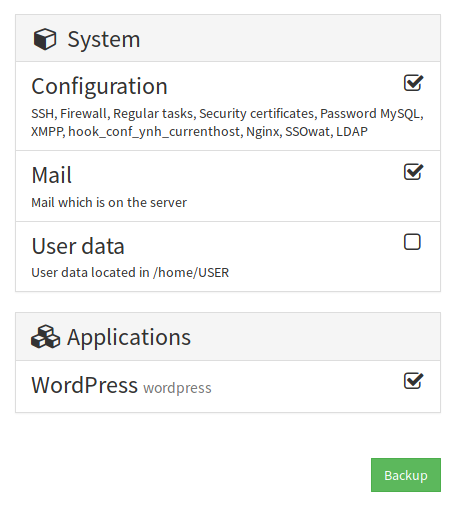
Podes crear un novo arquivo de apoio desde a liña de ordes. Aquí tes algúns exemplos simples de ordes e o seu resultado correspondente:
- Facer copia de todo (das partes do sistema e aplicacións):
yunohost backup create
- Backing up only apps:
yunohost backup create --apps
- Backing up only two apps (WordPress and shaarli):
yunohost backup create --apps wordpress shaarli
- Backing up only emails:
yunohost backup create --system data_mail
- Backing up emails and WordPress:
yunohost backup create --system data_mail --apps wordpress
For more information and options regarding backup creation, consult yunohost backup create --help. You can also list the system parts that can be backed up with yunohost hook list backup.
Descargando as copias
- desde a interface web
- Cun cliente SFTP
- desde a liña de ordes
Despois de crear as copias é posible inspeccionar e ver a lista utilizando a sección correspondente da interface web. Un botón permíteche descargar o arquivo. Se o arquivo é maior de 3GB é mellor descargalo usando SFTP.
Copia de apoio > Arquivos locais > <Nome do arquivo> > Descargar
Currently, the most accessible way to download big archives is to use the program FileZilla as explained in this page.
By default, backups are stored in /home/yunohost.backup/archives/.
The yunohost backup list and yunohost backup info <archive_name> commands provide information about the names and sizes of backups.
It is possible to use scp (a program based on ssh) to copy files between two machines via the command line. So, from a GNU/Linux machine, you can use the following command to download an archive:
scp admin@your.domain.tld:/home/yunohost.backup/archives/<archive_name>.tar ./
If your SSH port is different from 22
scp -P ssh_port admin@your.domain.tld:/home/yunohost.backup/archives/<archive_name>.tar ./
Don't forget to store your backup in a different location from your server.
If you want, you can connect an external disk to your server so that the archives are saved directly to it. See this guide on adding external storage to your server.
Testing
You should regularly test your backups by at least listing the contents of the archives and checking the size of the associated data. It is best to practice restoration regularly.
# List the files
tar -tvf /home/yunohost.backup/archives/ARCHIVE.tar | less

# List database exports
tar -tvf /home/yunohost.backup/archives/ARCHIVE.tar | grep "(db|dump)`.sql"

# Check the weight
ls -lh /home/yunohost.backup/archives/ARCHIVE.tar
Restoring backups
SPOILER: The larger your data volume and the more applications you have, the more complex your recovery will be.
Simple case: little data, archive already present
- desde a interface web
- desde a liña de ordes
Go in Backup > Local storage and select your archive. You can then select which items you want to restore, then click on 'Restore'.
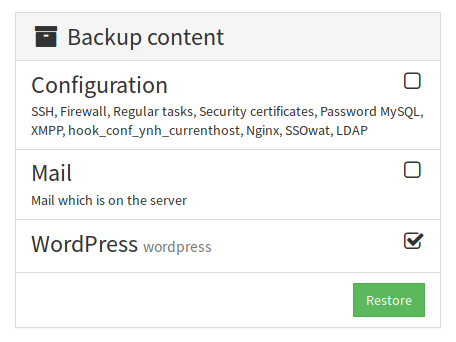
From the command line, you can run yunohost backup list to get the available archive names. They are basically their filenames without extensions.
You can then run yunohost backup restore <archivename> (hence without its .tar extension) to restore an archive. As for yunohost backup create, this will restore everything in the archive by default. If you want to restore only specific items, you can use something like yunohost backup restore <archivename> --apps wordpress, which will restore only the WordPress app.
In the case of a complete restoration, it is possible to restore instead of launching the initial configuration.
To restore an app, the domain on which it was installed should already be configured (or you need to restore the corresponding system configuration). You also cannot restore an app that is already installed... which means that to restore an old version of an app, you must first uninstall it.
Uploading an archive
In many cases, the archive is not on the server on which you want to restore it. So it has to be uploaded, which depending on its size can take more or less time.
- Cun cliente SFTP
- desde a liña de ordes
Currently, the most accessible solution for uploading backups is to use the FileZilla program as explained in this page.
By default, backups are to be placed in /home/yunohost.backup/archives/.
You can use scp (a command built on ssh) to copy files between two machines from the CLI. For example, for a Linux terminal:
scp /path/to/your/<archive_name>.tar admin@your.domain.tld:/home/yunohost.backup/archives/
If your SSH port is different from 22
scp -P ssh_port /path/to/your/<archive_name>.tar admin@your.domain.tld:/home/yunohost.backup/archives/